Payment Gateways
The Payment Gateways configuration allows you to set up payment processors to accept payments from customers. BrainScore supports PayPal, Stripe, Mollie, and Razorpay.
List Payment Gateways
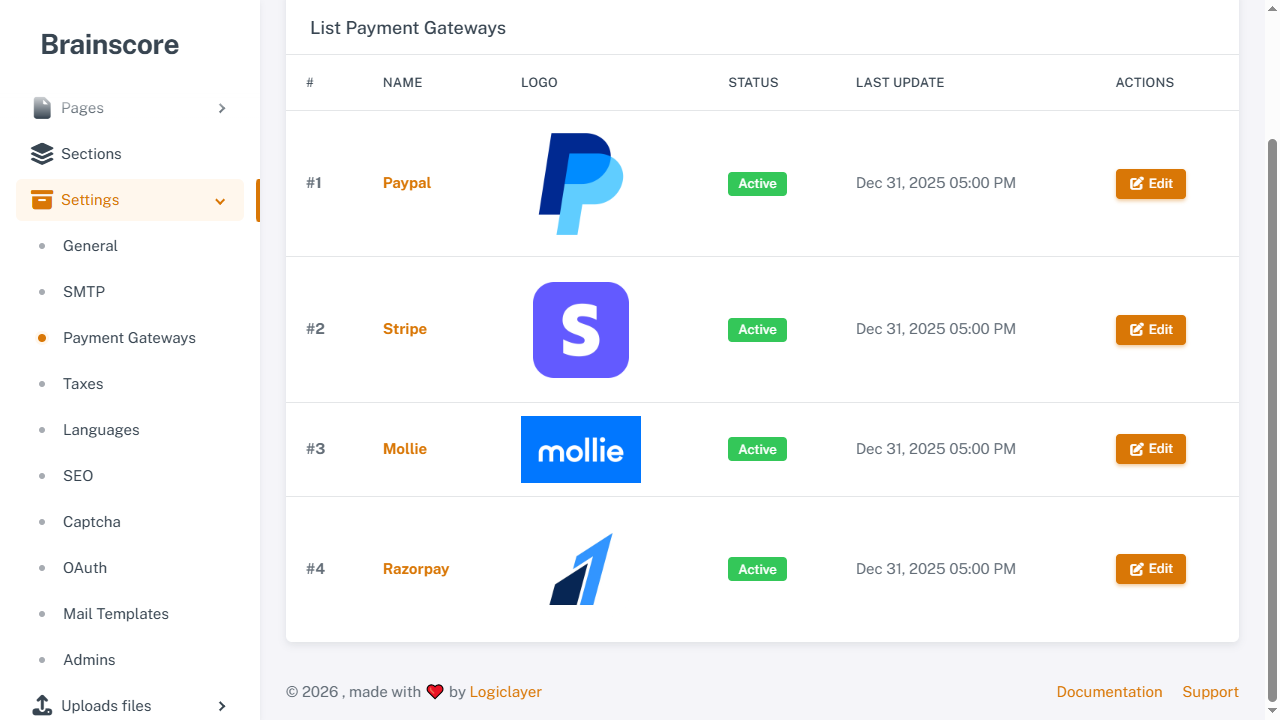
The list page displays all available payment gateways. Click Edit on any gateway to configure it.
Configuration Steps
- Get API Credentials: Obtain API keys from the payment gateway's developer dashboard
- Enter Credentials: Fill in the required credentials in the form
- Set Gateway Fees: Configure transaction fees (percentage as an integer from 0 to 100)
- Test Mode: Enable test mode for testing (only shown for gateways that support a built-in toggle)
- Enable Status: Toggle the Status switch to activate
- Save: Click Update to save the configuration
PayPal
How to Get Keys
- Visit PayPal Developer Dashboard
- Log in with your PayPal account
- Click Create App to create a new application
- Select app type (REST API apps)
- Copy Client ID and Client Secret
- For production, switch to Live mode and create a live app
Form Fields
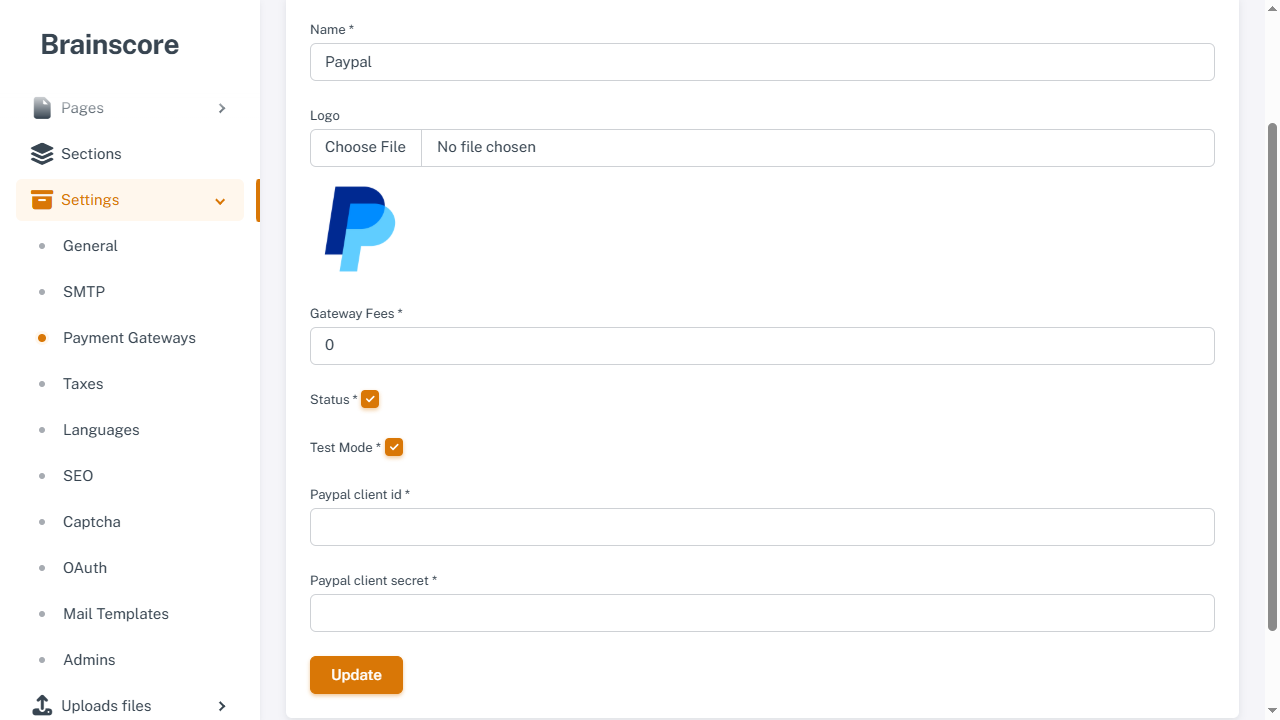
- Client ID *: PayPal Client ID
- Client Secret *: PayPal Client Secret
- Test Mode: Enable for sandbox testing (available on PayPal)
- Gateway Fees: Transaction fee percentage (integer, e.g.,
3for 3%) - Status: Toggle to enable/disable
Stripe
How to Get Keys
- Visit Stripe Dashboard
- Log in to your Stripe account
- Go to Developers → API keys
- Copy Publishable key and Secret key
- For production, use Live mode keys (toggle in dashboard)
- For testing, use Test mode keys
Form Fields
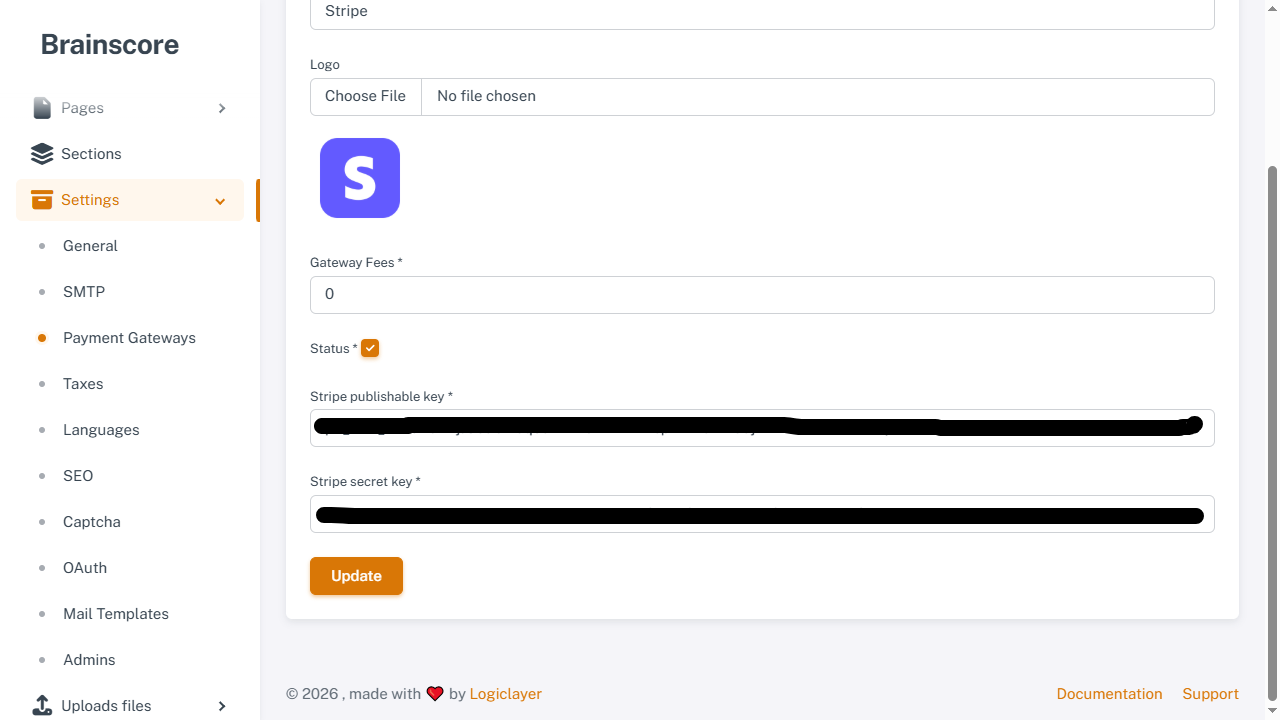
- Publishable Key *: Stripe Publishable Key
- Secret Key *: Stripe Secret Key
- Gateway Fees: Transaction fee percentage (integer)
- Status: Toggle to enable/disable
Note: Stripe doesn't have a test mode toggle here—use test keys for testing and live keys for production.
Mollie
How to Get Keys
- Visit Mollie Dashboard
- Log in to your Mollie account
- Go to Developers → API keys
- Copy your Live API key or Test API key
- For production, use Live API key
- For testing, use Test API key
Form Fields
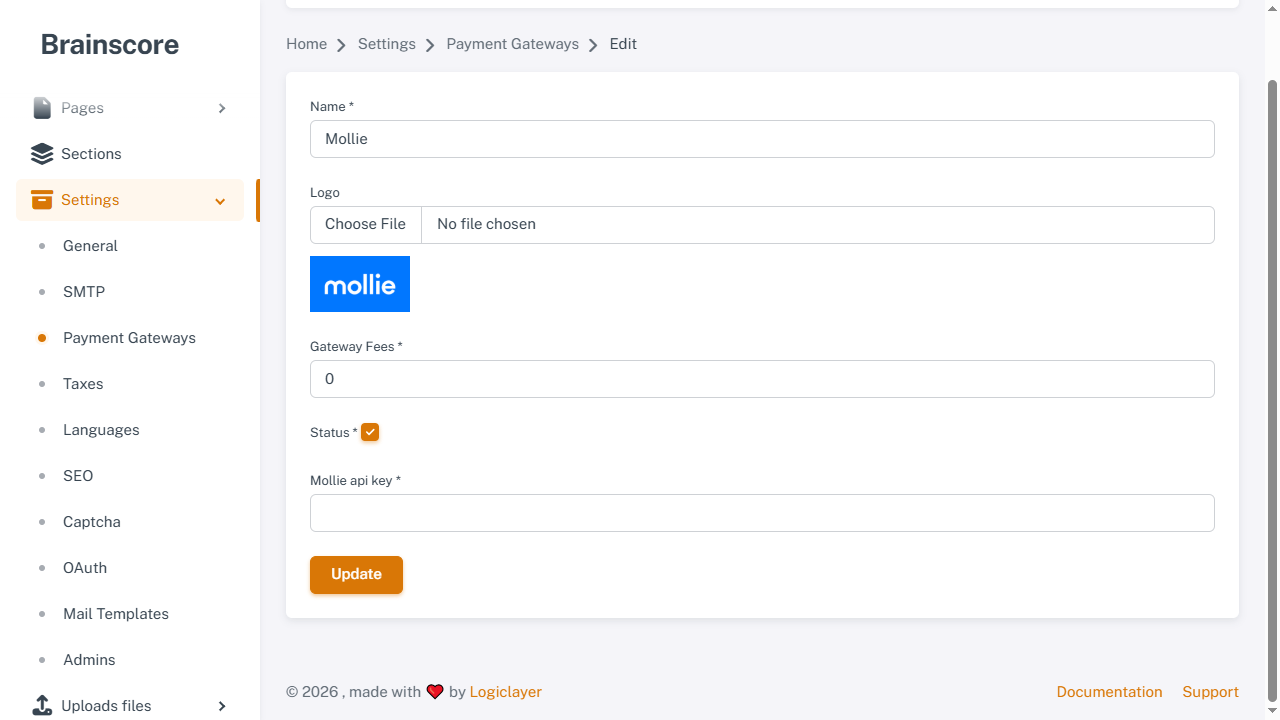
- API Key *: Mollie API Key (live or test)
- Gateway Fees: Transaction fee percentage (integer)
- Status: Toggle to enable/disable
Razorpay
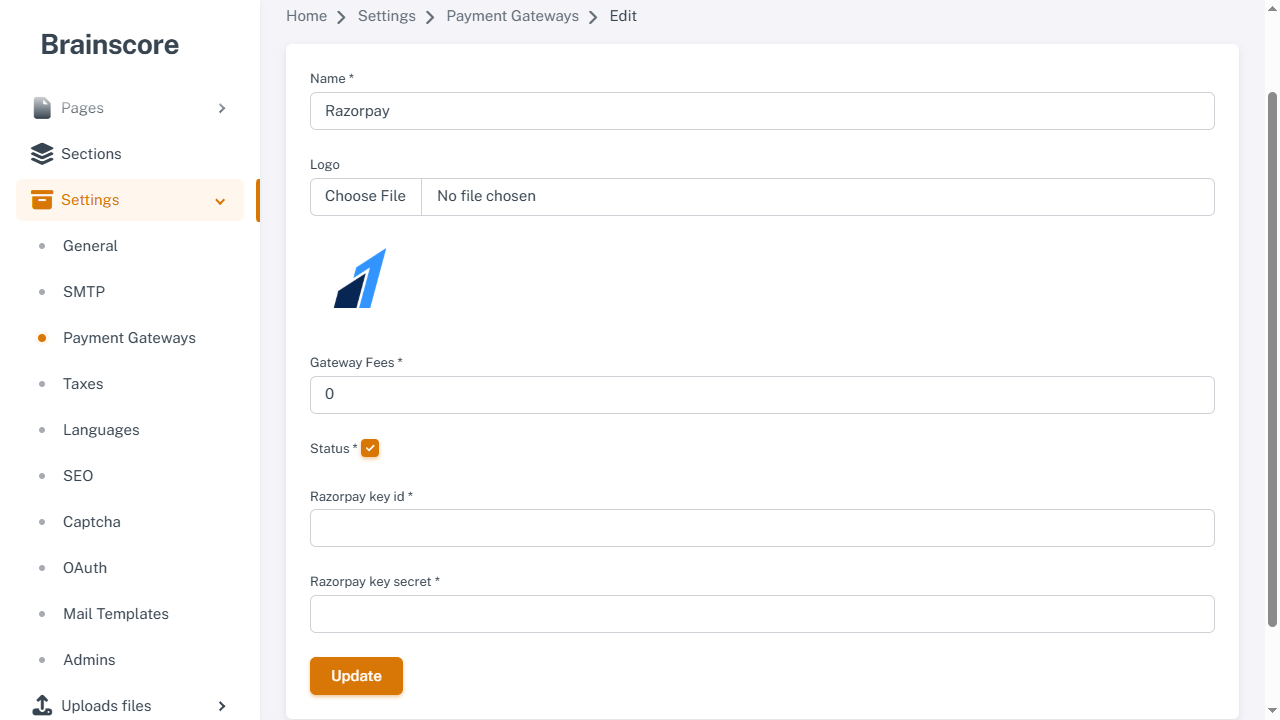
How to Get Keys
- Visit Razorpay Dashboard
- Log in to your Razorpay account
- Go to Settings → API Keys
- Click Generate Key if you don't have one
- Copy Key ID and Key Secret
- For production, use Live mode keys
- For testing, use Test mode keys (toggle in dashboard)
Form Fields
- Key ID *: Razorpay Key ID
- Key Secret *: Razorpay Key Secret
- Gateway Fees: Transaction fee percentage (integer)
- Status: Toggle to enable/disable
Important Notes
- Required Fields: All credential fields are required when enabling a payment gateway
- Test Mode: If the gateway has a Test Mode toggle, enable it for sandbox testing. Otherwise, use test credentials for testing and live credentials for production.
- Gateway Fees: Fees are added to the transaction amount and charged to customers
- Currency Support: Each gateway supports specific currencies. Check supported currencies before enabling
- Security: Never share your API keys publicly. Keep them secure
- Testing: Always test payments in test mode before going live
- Live Mode: Make sure to use live credentials when enabling for production use