Captcha
The Captcha configuration allows you to set up and manage CAPTCHA providers to protect your forms from spam and bots. The system supports three CAPTCHA providers: Google reCAPTCHA, hCaptcha, and Cloudflare Turnstile.
List Captcha Providers
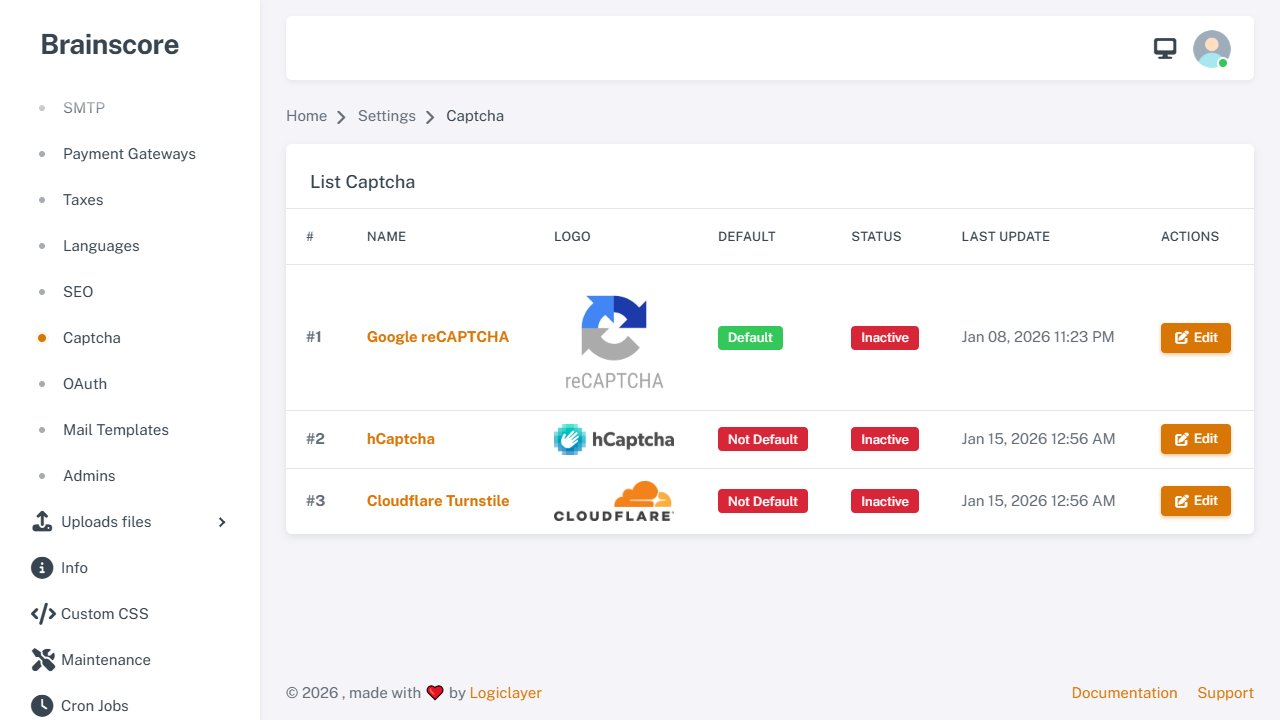
The list page displays all available CAPTCHA providers. Click Edit on any provider to configure it.
Configuration Steps
- Select a Provider: Choose one of the three available providers
- Get API Keys: Obtain Site Key and Secret Key from the provider's website
- Enter Keys: Fill in the keys in the configuration form
- Enable Status: Toggle the Status switch to activate
- Set as Default: Mark as default if you want it to be the active CAPTCHA
Google reCAPTCHA
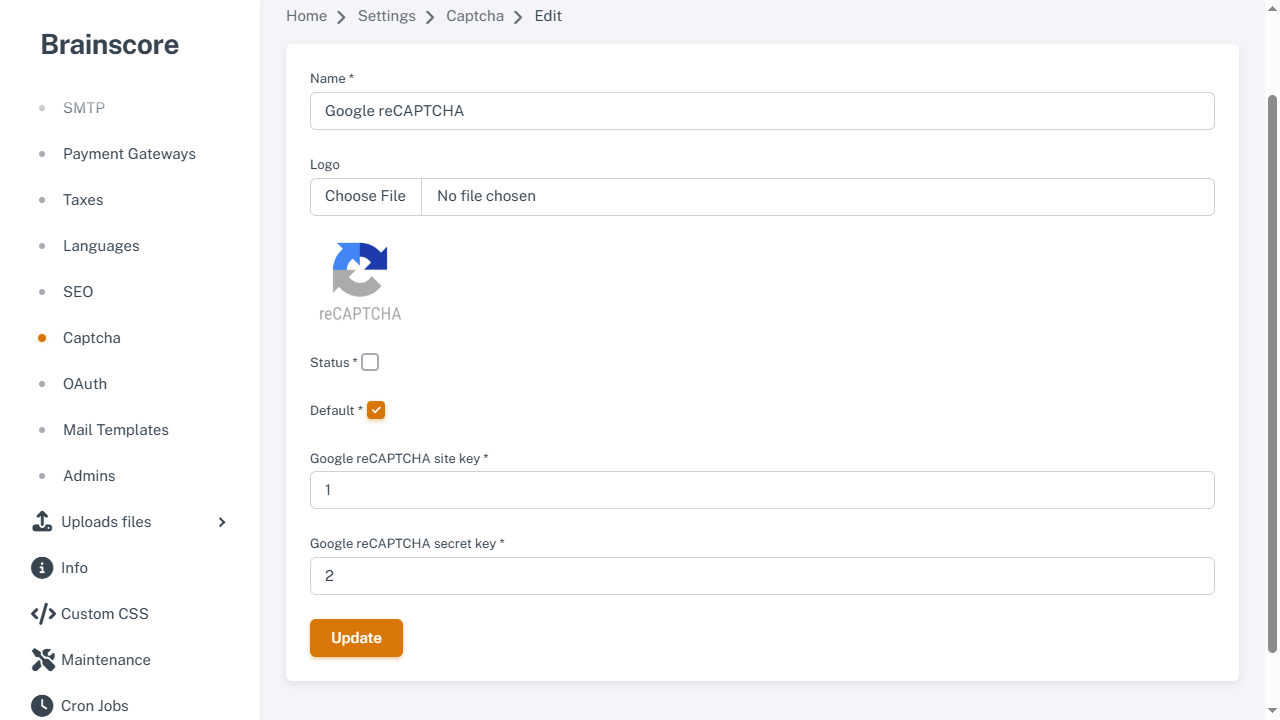
Important: You must use reCAPTCHA v2 with the "I'm not a robot" checkbox (interactive type). reCAPTCHA v3 is not supported.
How to Get Keys
- Visit Google reCAPTCHA Admin Console
- Click + Create to register a new site
- Enter your site name and domain
- Select reCAPTCHA v2 → Choose "I'm not a robot" Checkbox (interactive type)
- Submit to get your Site Key and Secret Key
Form Fields
- Site Key: Enter the Site Key from Google reCAPTCHA
- Secret Key: Enter the Secret Key from Google reCAPTCHA
- Status: Toggle to enable/disable
- Default: Mark as default CAPTCHA provider
hCaptcha
How to Get Keys
- Visit hCaptcha Dashboard
- Sign up or log in to your account
- Click New Site to create a new site
- Enter site details and domain
- Copy your Site Key and Secret Key
Form Fields
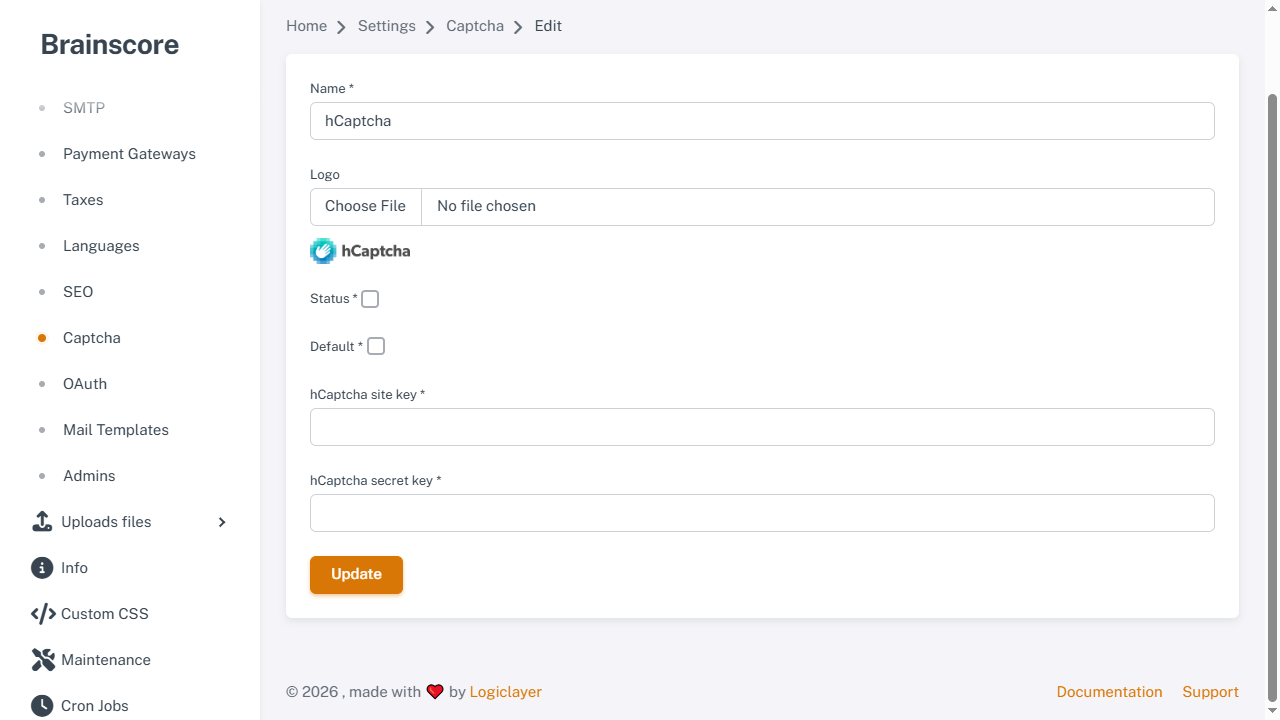
- Site Key: Enter the Site Key from hCaptcha
- Secret Key: Enter the Secret Key from hCaptcha
- Status: Toggle to enable/disable
- Default: Mark as default CAPTCHA provider
Cloudflare Turnstile
How to Get Keys
- Visit Cloudflare Dashboard
- Log in to your Cloudflare account
- Go to Turnstile section
- Click Add Site to create a new site
- Enter site details and domain
- Copy your Site Key and Secret Key
Form Fields
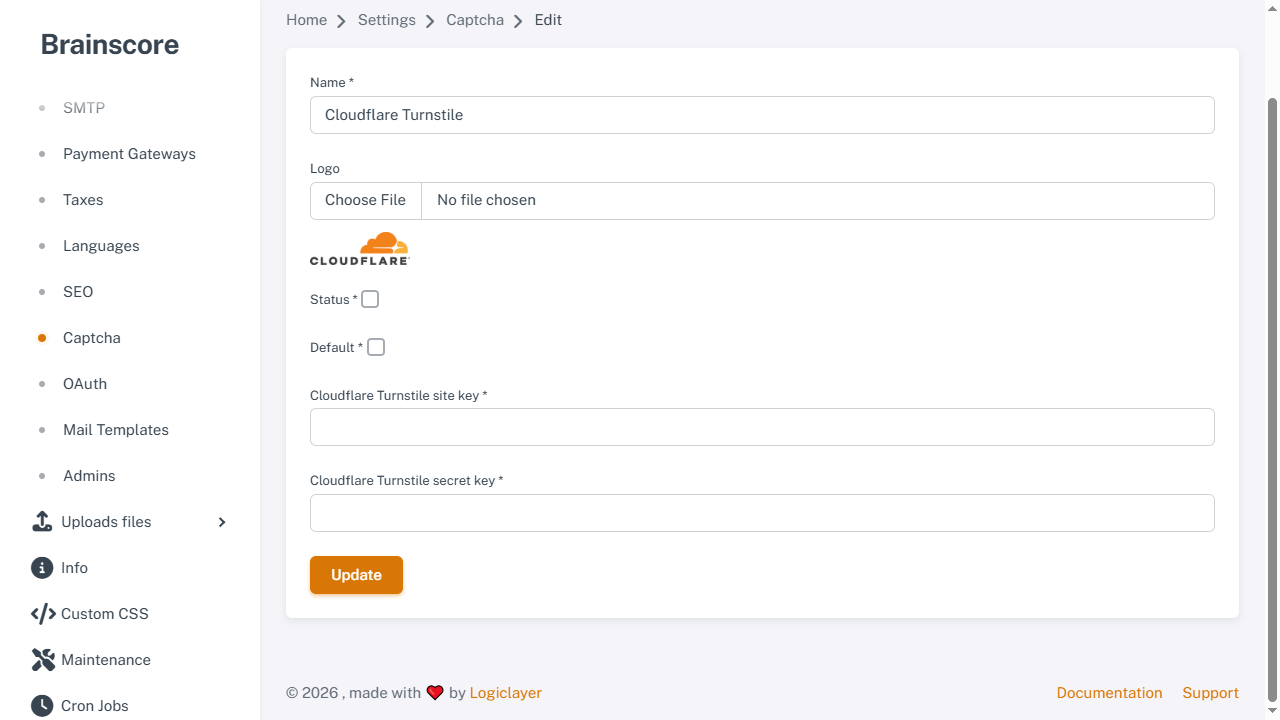
- Site Key: Enter the Site Key from Cloudflare Turnstile
- Secret Key: Enter the Secret Key from Cloudflare Turnstile
- Status: Toggle to enable/disable
- Default: Mark as default CAPTCHA provider
Important Notes
- Google reCAPTCHA Version: You must use reCAPTCHA v2 with the "I'm not a robot" checkbox (interactive type). reCAPTCHA v3 is not supported by this system.
- Default Provider Must Be Active: Only an active CAPTCHA provider can be set as default
- One Default Provider: Only one CAPTCHA provider can be set as default at a time
- Required Fields: Both Site Key and Secret Key are required when enabling a provider
- Domain Configuration: Make sure to add your domain in the CAPTCHA provider's dashboard
- Testing: Test the CAPTCHA on your forms after configuration to ensure it works correctly