OAuth
The OAuth configuration allows you to set up social login providers so users can sign in using their social media accounts. The system supports Facebook, Google, Microsoft, and VKontakte.
List OAuth
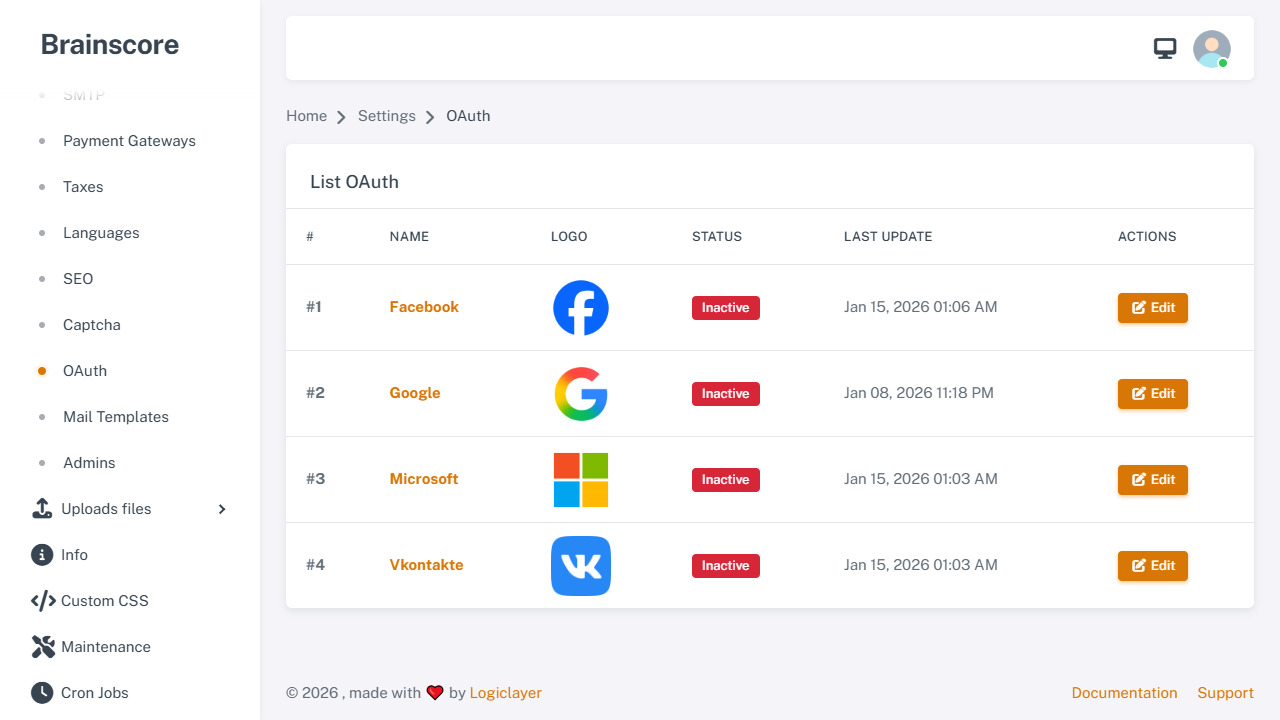
The list page displays all available OAuth providers. Click Edit on any provider to configure it.
Configuration Steps
- Get API Credentials: Obtain Client ID and Client Secret from the provider's developer console
- Set Redirect URL: Add the redirect URL in the provider's console (see below)
- Enter Credentials: Fill in Client ID and Client Secret in the form
- Enable Status: Toggle the Status switch to activate
- Save: Click Update to save the configuration
Facebook OAuth
How to Get Keys
- Visit Facebook Developers
- Go to My Apps → Create App
- Select Consumer app type
- Go to Settings → Basic
- Copy App ID (Client ID) and App Secret (Client Secret)
Redirect URL
https://yourdomain.com/oauth/facebook/callback
Form Fields
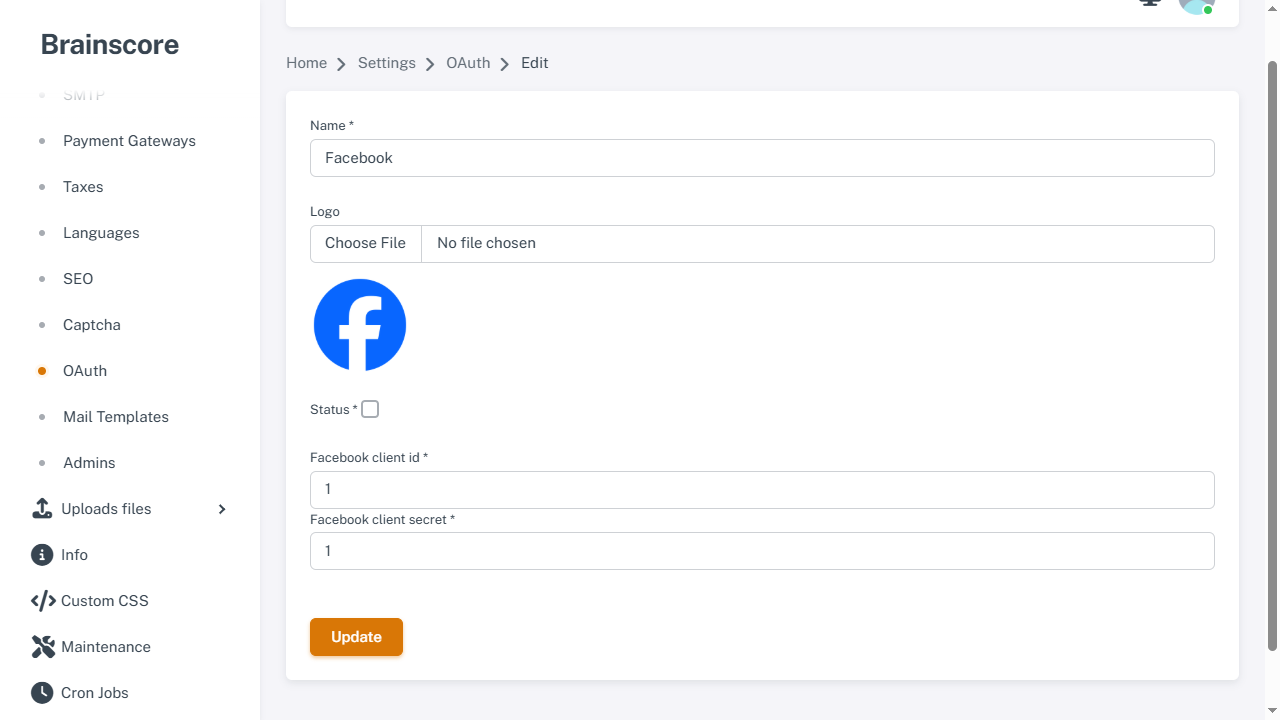
- Client ID: Enter your Facebook App ID
- Client Secret: Enter your Facebook App Secret
- Status: Toggle to enable/disable
Google OAuth
How to Get Keys
- Visit Google Cloud Console
- Create a new project or select existing one
- Go to APIs & Services → Credentials
- Click Create Credentials → OAuth client ID
- Select Web application
- Add authorized redirect URI:
https://yourdomain.com/oauth/google/callback - Copy Client ID and Client Secret
Redirect URL
https://yourdomain.com/oauth/google/callback
Form Fields
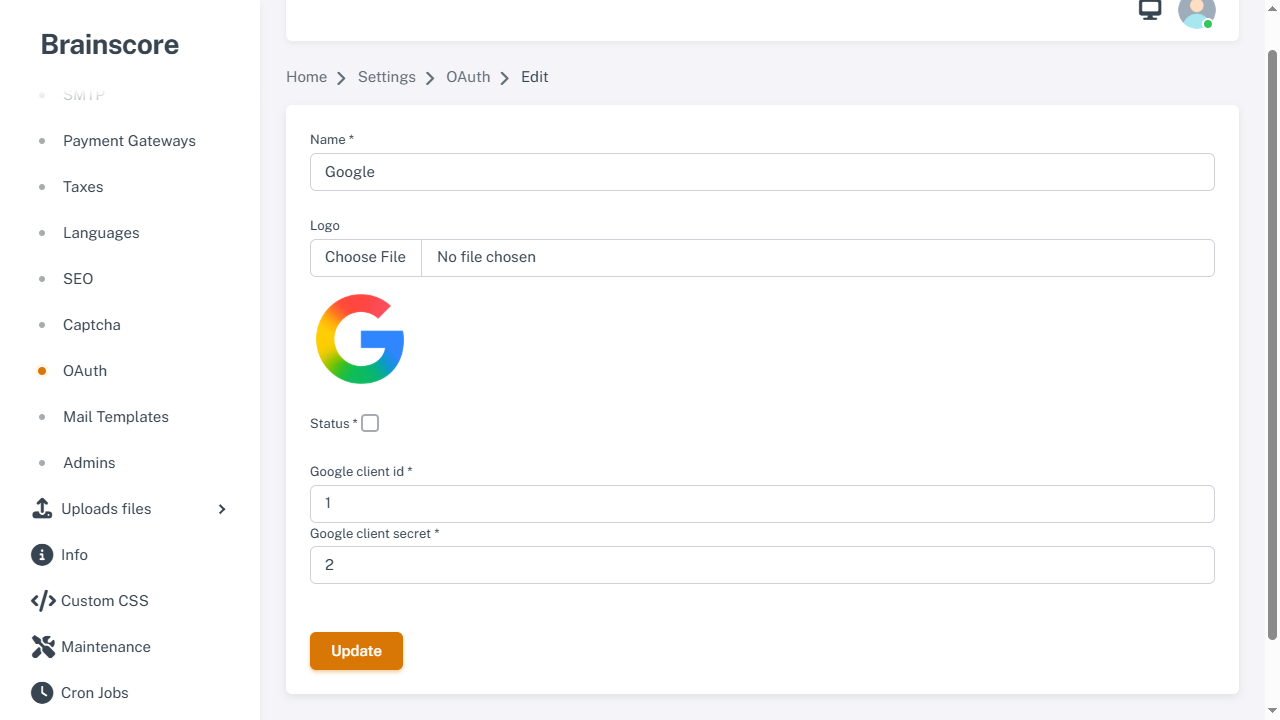
- Client ID: Enter your Google Client ID
- Client Secret: Enter your Google Client Secret
- Status: Toggle to enable/disable
Microsoft OAuth
How to Get Keys
- Visit Azure Portal
- Go to Azure Active Directory → App registrations
- Click New registration
- Enter app name and redirect URI:
https://yourdomain.com/oauth/microsoft/callback - Go to Certificates & secrets → Create new client secret
- Copy Application (client) ID and Client secret value
Redirect URL
https://yourdomain.com/oauth/microsoft/callback
Form Fields
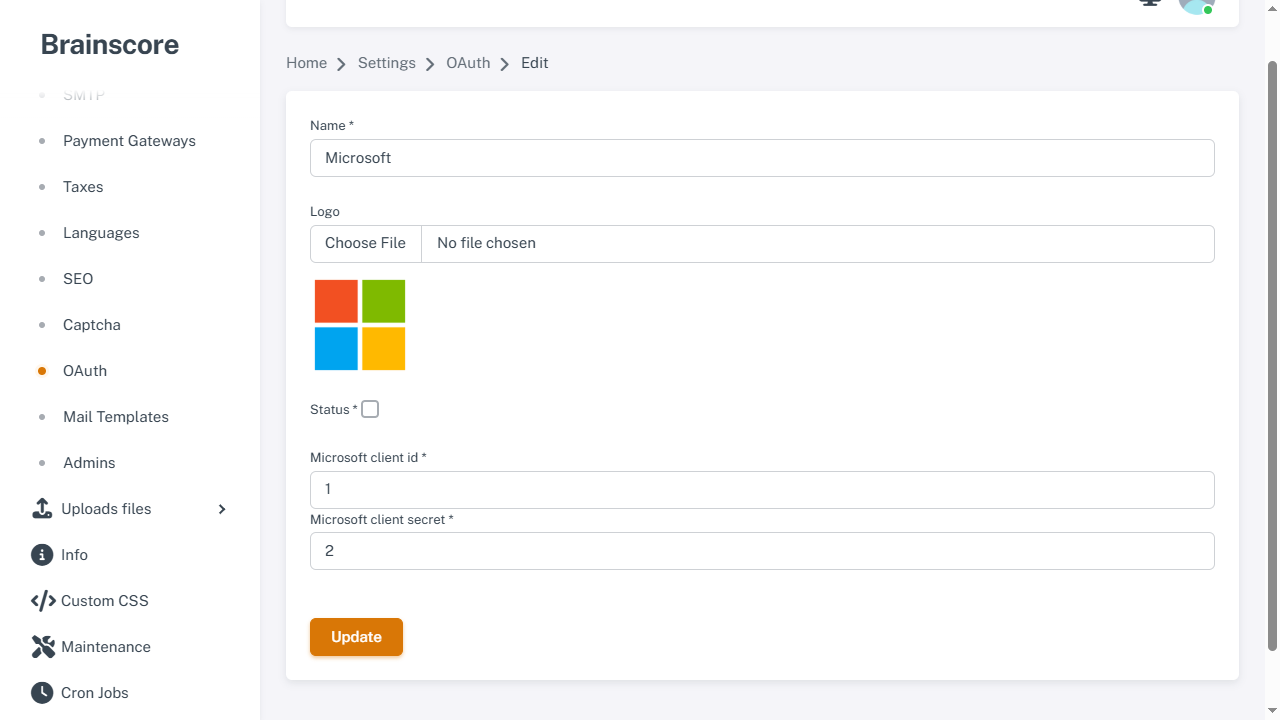
- Client ID: Enter your Microsoft Application (client) ID
- Client Secret: Enter your Microsoft Client secret value
- Status: Toggle to enable/disable
VKontakte OAuth
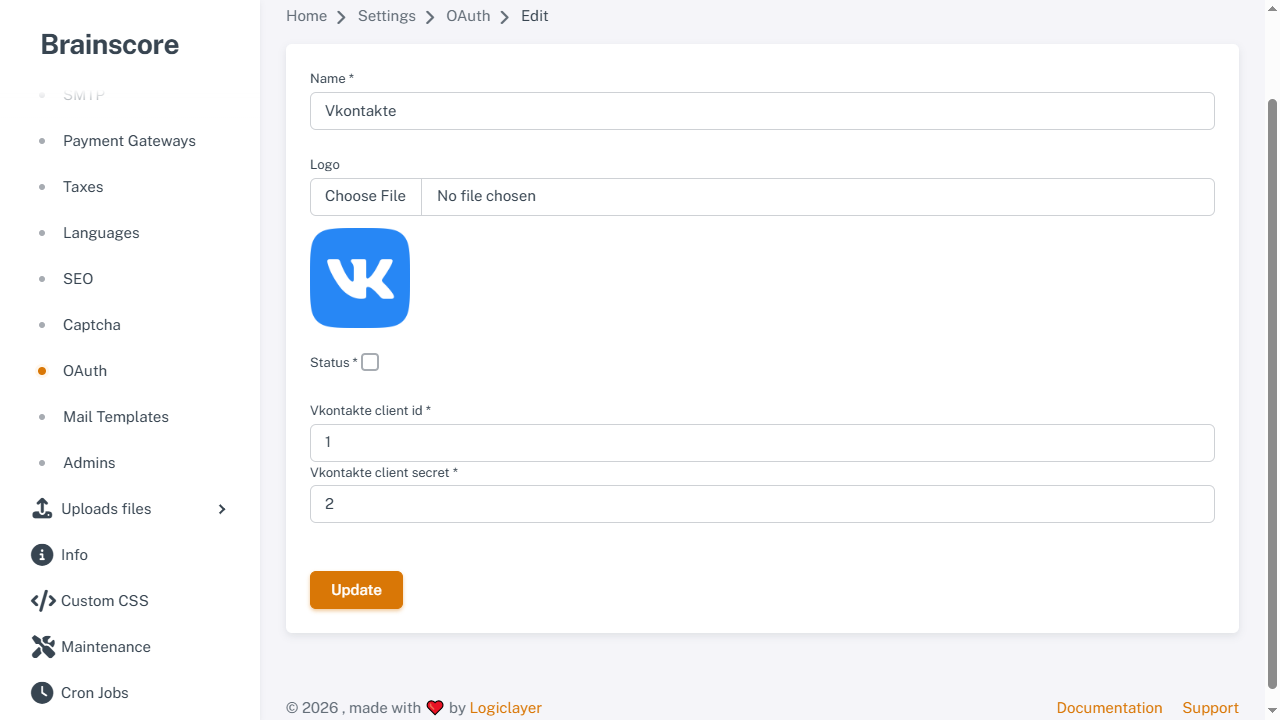
How to Get Keys
- Visit VK Developers
- Go to My Apps → Create
- Fill in app details
- Go to Settings → Application settings
- Add redirect URI:
https://yourdomain.com/oauth/vkontakte/callback - Copy Application ID (Client ID) and Secure key (Client Secret)
Redirect URL
https://yourdomain.com/oauth/vkontakte/callback
Form Fields
- Client ID: Enter your VKontakte Application ID
- Client Secret: Enter your VKontakte Secure key
- Status: Toggle to enable/disable
Important Notes
- Redirect URLs: Make sure to add the exact redirect URL in each provider's console
- HTTPS Required: Most providers require HTTPS for production redirect URLs
- Required Fields: Both Client ID and Client Secret are required when enabling a provider
- Testing: Test social login after configuration to ensure it works correctly
- Registration Status: OAuth registration requires user registration to be enabled in Settings