Languages
The Languages configuration allows you to manage multiple languages for your website. You can add, edit, and manage language translations to support multilingual content.
List Languages
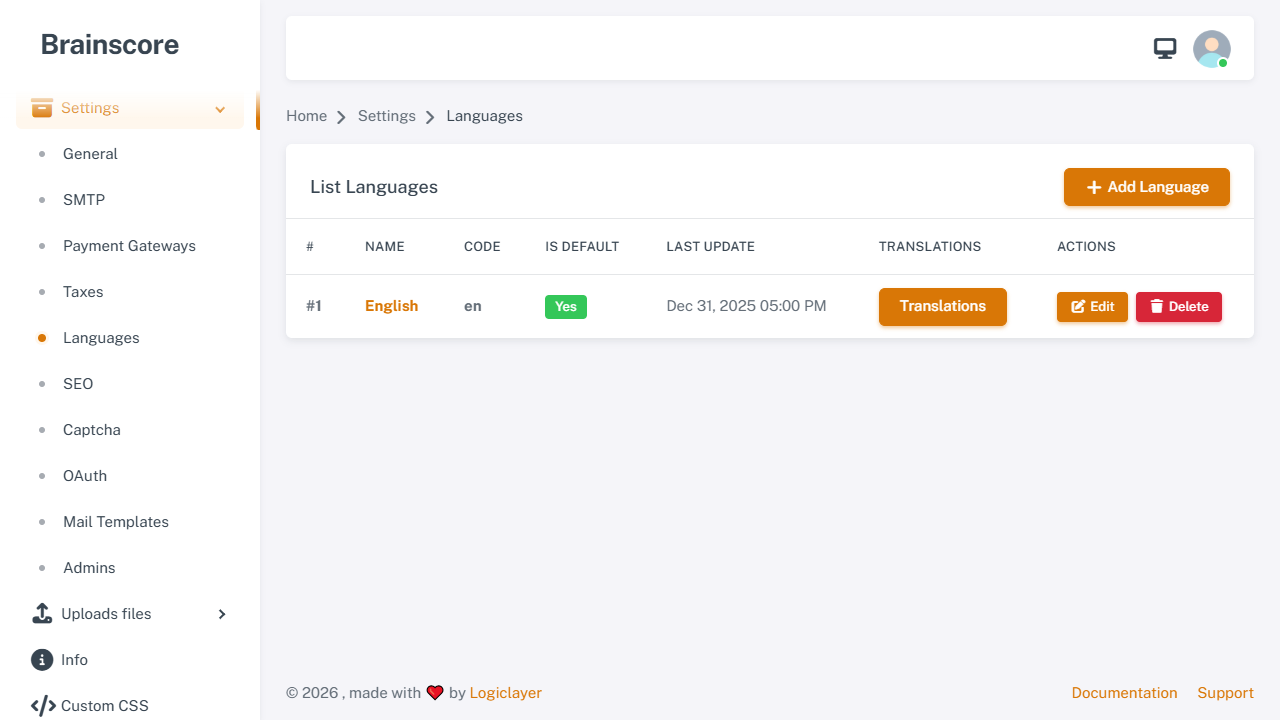
The list page displays all configured languages with their details. You can edit, delete, or manage translations for each language.
Create Language
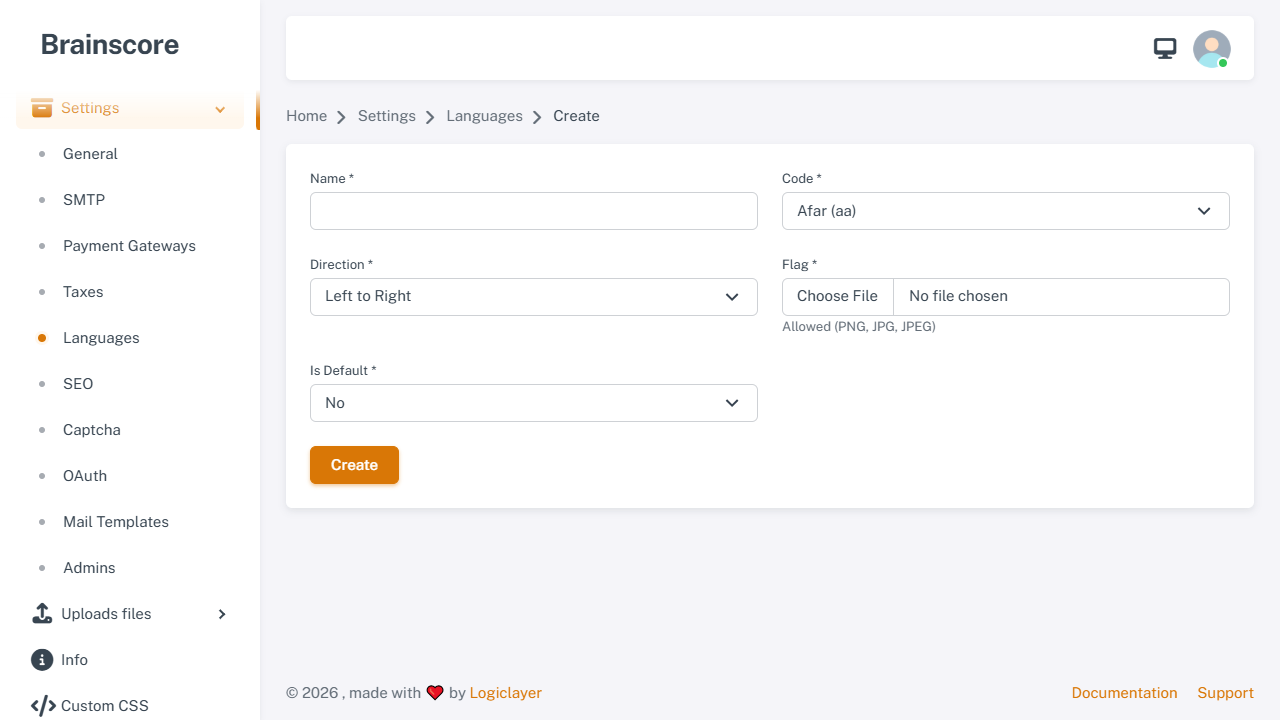
Form Fields
- Name *: The display name of the language (e.g., "English", "French", "Spanish")
- Code *: Language code (ISO 639-1 format, e.g.,
en,fr,es). Select from the dropdown of supported languages - Direction *: Text direction
- Left to Right (LTR): For languages like English, French, Spanish
- Right to Left (RTL): For languages like Arabic, Hebrew
- Flag *: Upload a flag image for the language (PNG, JPG, JPEG formats allowed)
- Is Default *: Set as the default language for your website
- Yes: This language will be the default when users first visit
- No: This language will be available but not default
Usage Steps
- Click Add Language button on the list page
- Enter the language name
- Select the language code from the dropdown
- Choose text direction (LTR or RTL)
- Upload a flag image
- Set as default if needed
- Click Create to save
Important Notes
- Language Code: Must be a valid ISO 639-1 language code supported by the system
- Default Language: Only one language can be set as default at a time
- Translations: After creating a language, use the Translations button to manage translation files
- Flag Image: Recommended size is 32x24 pixels or similar aspect ratio
- Language Files: The system automatically creates language files when you add a new language
- Deletion Rules:
- The default language cannot be deleted
- The English language (
en) cannot be deleted