Maintenance
The Maintenance Mode feature allows you to temporarily disable public access to your website while keeping the admin panel accessible. This is useful when performing updates, maintenance, or making significant changes to your site.
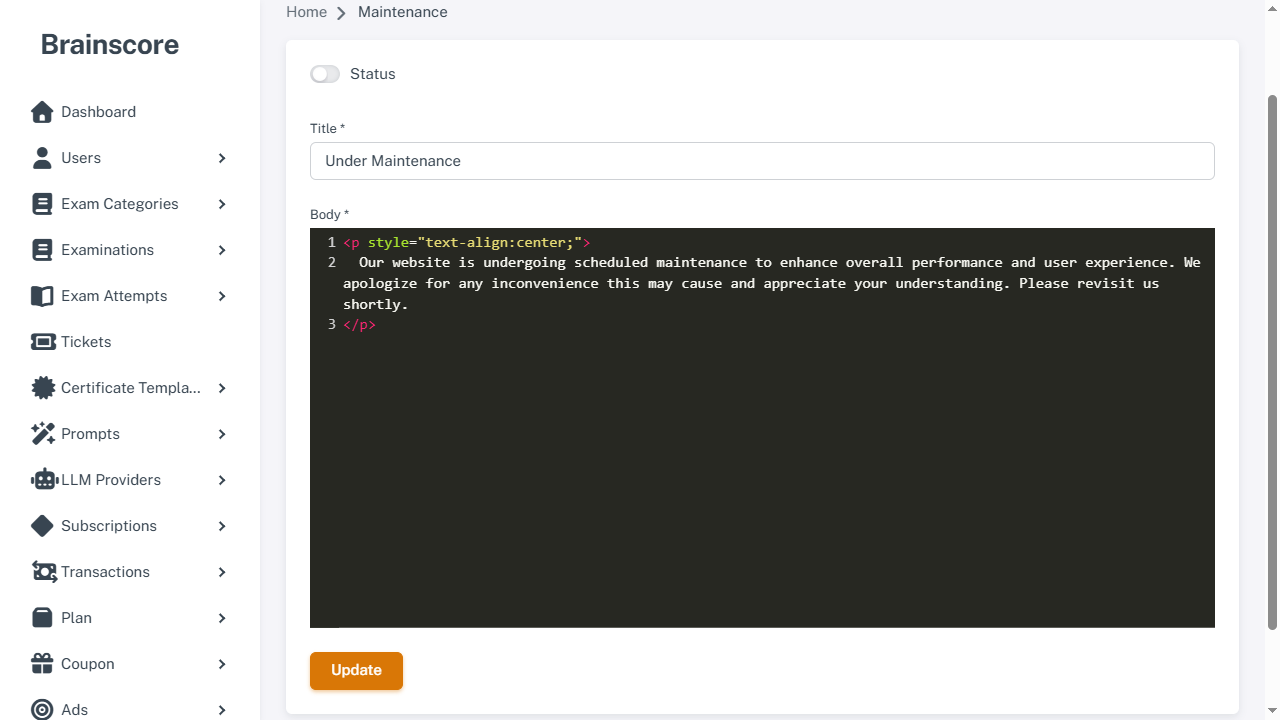
Overview
Maintenance Mode displays a custom maintenance page to all visitors while allowing administrators to continue accessing the admin panel. This ensures you can work on your site without disrupting the user experience or exposing incomplete changes.
How It Works
-
Status Toggle: Enable or disable maintenance mode using the Status toggle switch.
-
Custom Message: Configure a title and body message that will be displayed to visitors when maintenance mode is active.
-
Admin Access: Administrators can still access the admin panel even when maintenance mode is enabled, allowing you to make changes and disable maintenance mode when ready.
-
Automatic Redirect: All non-admin visitors are automatically redirected to the maintenance page when they try to access any frontend page.
Configuration
Status
- Enabled: When maintenance mode is enabled, all frontend pages are inaccessible to regular users
- Disabled: When disabled, your website operates normally
Title
- Required: The title field is required when maintenance mode is enabled
- Maximum Length: 150 characters
- Purpose: Display a clear heading on the maintenance page (e.g., "We'll be back soon!", "Site Under Maintenance")
Body
- Required: The body field is required when maintenance mode is enabled
- Maximum Length: 500 characters
- HTML Support: You can use HTML tags to format your message
- Purpose: Provide detailed information about the maintenance, expected downtime, or any other relevant information
Usage
Enabling Maintenance Mode
- Navigate to System > Maintenance in the admin panel
- Toggle the Status switch to enable maintenance mode
- Enter a Title for your maintenance page
- Enter a Body message with details about the maintenance
- Click Update to save and activate maintenance mode
Disabling Maintenance Mode
- Navigate to System > Maintenance in the admin panel
- Toggle the Status switch to disable maintenance mode
- Click Update to save and deactivate maintenance mode
Example Messages
Title Examples
- "We'll be back soon!"
- "Site Under Maintenance"
- "Temporarily Unavailable"
- "Scheduled Maintenance"
Body Examples
Simple Message:
We're currently performing scheduled maintenance. We'll be back online shortly. Thank you for your patience.
Detailed Message with HTML:
<p>We're performing scheduled maintenance to improve your experience.</p>
<p><strong>Expected downtime:</strong> 2-3 hours</p>
<p>We apologize for any inconvenience and appreciate your patience.</p>
Message with Contact Information:
<p>Our site is currently under maintenance.</p>
<p>For urgent inquiries, please contact us at <a href="mailto:support@example.com">support@example.com</a></p>
Important Notes
-
Admin Access: Administrators can always access the admin panel, even when maintenance mode is enabled. This allows you to make changes and disable maintenance mode when ready.
-
SEO Impact: The maintenance page includes
noindexandnofollowmeta tags to prevent search engines from indexing it. -
Session Management: Users who are already logged in (but not as admins) will be redirected to the maintenance page when they try to access frontend pages.
-
Quick Access: Keep the admin panel URL bookmarked so you can easily access it to disable maintenance mode.
-
Testing: Before enabling maintenance mode, make sure you can still access the admin panel. Test the maintenance page appearance and message.
Best Practices
- Plan Ahead: Schedule maintenance during low-traffic periods when possible
- Clear Communication: Provide clear information about what's happening and when the site will be back
- Set Expectations: Include expected downtime duration if known
- Contact Information: Consider including contact information for urgent inquiries
- Professional Appearance: Use a professional and friendly tone in your maintenance message
- Quick Updates: Keep the maintenance message updated if the situation changes
- Test First: Test maintenance mode on a staging environment before using it on production
- Monitor: Keep an eye on your site to ensure maintenance mode is working as expected