Custom CSS
The Custom CSS feature allows you to add your own CSS code to customize the appearance of your website's frontend without modifying the core theme files.
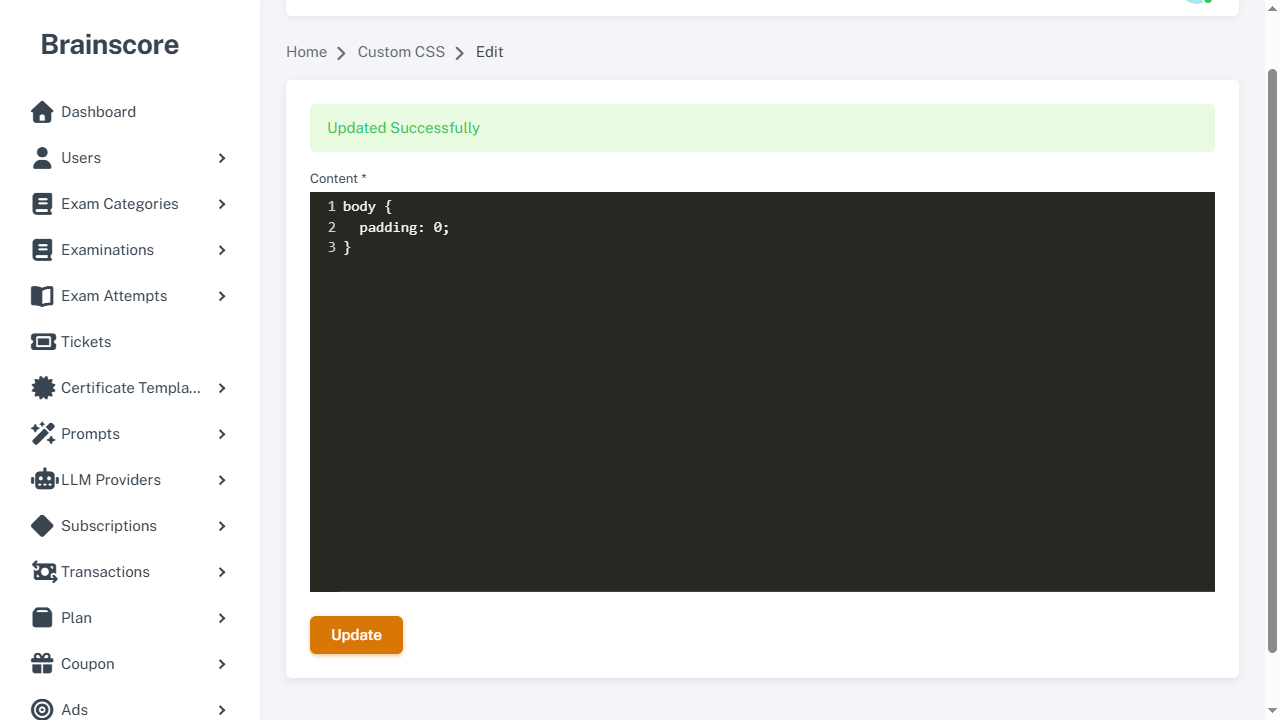
Overview
Custom CSS provides a convenient way to override default styles, add custom styling, and personalize the look and feel of your website. The CSS code you add will be loaded after all other stylesheets, ensuring your custom styles take precedence over the default theme styles.
How It Works
-
CSS Storage: Your custom CSS code is stored in the
assets/frontend/custom.cssfile on the server. -
Loading Order: The custom CSS file is loaded in the frontend head section after all other CSS files, which means:
- Your custom styles will override default theme styles
- You can target any element on the frontend pages
- Changes take effect immediately after saving
-
Code Editor: The interface provides a code editor with syntax highlighting to make writing and editing CSS easier.
Usage
Adding Custom CSS
- Navigate to Custom CSS in the admin panel
- Enter your CSS code in the textarea editor
- Click the Update button to save your changes
- Your custom CSS will be applied to the frontend immediately
Example Use Cases
- Change Colors: Modify theme colors, button styles, or background colors
- Custom Typography: Adjust font families, sizes, or text styling
- Layout Adjustments: Modify spacing, margins, or padding
- Responsive Design: Add custom media queries for specific screen sizes
- Hide Elements: Hide specific elements using
display: noneorvisibility: hidden - Custom Animations: Add CSS animations or transitions
- Brand Customization: Match your brand colors and styling
Example CSS Code
/* Change primary button color */
.btn-primary {
    background-color: #your-color;
    border-color: #your-color;
}

/* Custom header styling */
.header {
    background: linear-gradient(135deg, #667eea 0%, #764ba2 100%);
}

/* Hide specific element */
.some-element {
    display: none;
}

/* Custom responsive design */
@media (max-width: 768px) {
    .container {
        padding: 10px;
    }
}
Important Notes
-
CSS Validation: Make sure your CSS syntax is correct. Invalid CSS may cause styling issues or prevent the page from rendering correctly.
-
Specificity: Use appropriate CSS selectors and specificity to ensure your styles are applied correctly. You may need to use
!importantin some cases, but it's better to use more specific selectors. -
Backup: Consider keeping a backup of your custom CSS code, as it's stored in a single file that could be overwritten.
-
Performance: While custom CSS is loaded efficiently, avoid adding excessive amounts of CSS that could impact page load times.
-
Browser Compatibility: Test your custom CSS across different browsers to ensure compatibility.
-
Theme Updates: Custom CSS is separate from theme files, so your customizations will persist through theme updates.
Best Practices
- Use Comments: Add comments to your CSS to document what each section does
- Organize Code: Group related styles together for better maintainability
- Test Changes: Always test your CSS changes on a staging environment first
- Keep It Simple: Use simple, clean CSS code that's easy to understand and maintain
- Mobile First: Consider mobile devices when writing custom CSS
- Validate: Use CSS validators to check for syntax errors before saving