Cron Jobs
Cron Jobs are scheduled tasks that run automatically at specified intervals to perform various maintenance and automation functions for your application. This feature allows you to set up automated tasks that keep your system running smoothly.
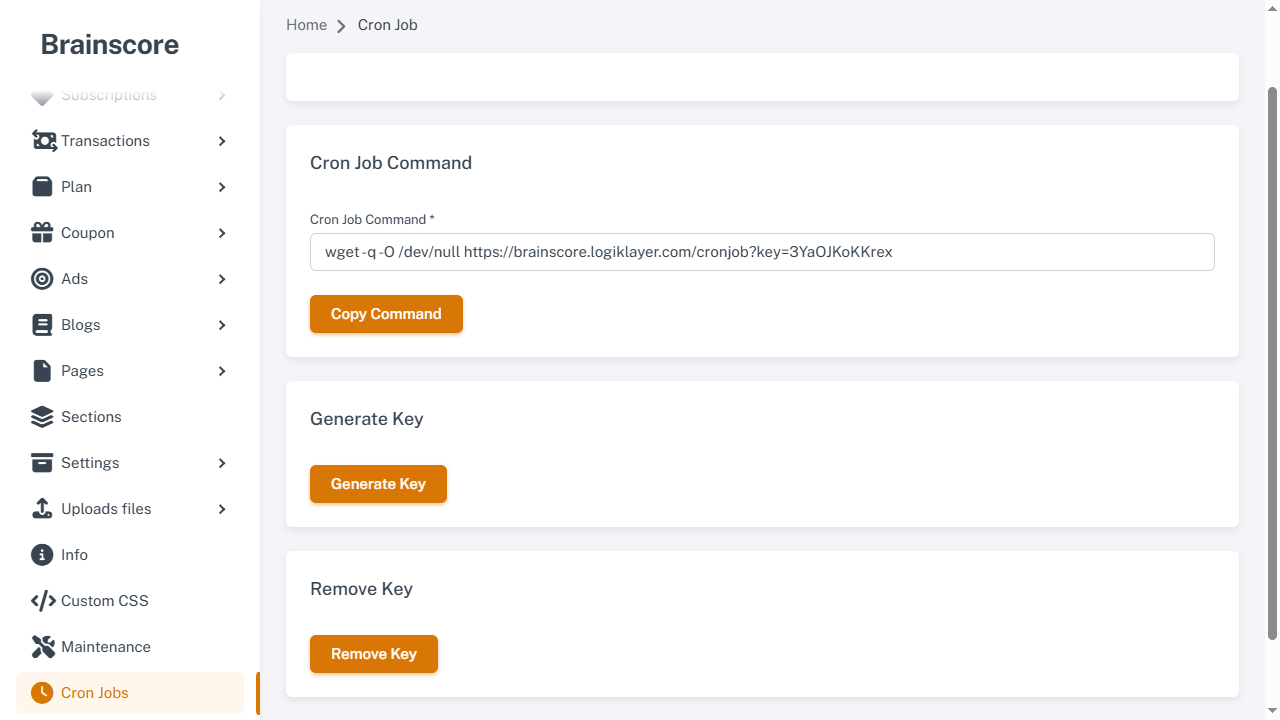
Overview
Cron Jobs execute scheduled commands automatically without manual intervention. They handle essential tasks such as cleaning up expired data, sending reminders, renewing subscriptions, and generating sitemaps. Setting up cron jobs is crucial for the proper functioning of your application.
How It Works
- Cron Job Command: A command is provided that needs to be added to your server's crontab (cron table)
- Scheduled Execution: The server's cron daemon calls the command at regular intervals (typically every minute)
- Task Execution: The command triggers Laravel's task scheduler, which runs all scheduled tasks
- Security Key: An optional security key can be generated to protect the cron job endpoint from unauthorized access
Scheduled Tasks
The application includes the following scheduled tasks:
Hourly Tasks
- Unpaid Transactions Cleanup: Automatically deletes unpaid transactions that have expired
- Expired Subscriptions Cleanup: Removes expired subscriptions based on your configured settings
Every Minute Tasks
- Free Subscription Renewal: Automatically renews free subscriptions
- Expiring Subscription Reminders: Sends reminders to users whose subscriptions are about to expire
- Expired Subscription Reminders: Sends reminders to users with expired subscriptions
Daily Tasks
- Sitemap Generation: Automatically generates and updates the sitemap for search engines
Setup Instructions
Step 1: Generate Security Key (Recommended)
- Navigate to System > Cron Jobs in the admin panel
- Click the Generate Key button
- A unique security key will be generated and added to your cron job URL
Why use a security key?
- Prevents unauthorized access to your cron job endpoint
- Protects your scheduled tasks from being triggered by malicious requests
- Adds an extra layer of security to your application
Step 2: Copy the Cron Job Command
- The cron job command is displayed in the Cron Job Command field
- Click the Copy Command button to copy it to your clipboard
- The command will look like:
Or without a key:
wget -q -O /dev/null https://yourdomain.com/cron-job?key=your-security-keywget -q -O /dev/null https://yourdomain.com/cron-job
Step 3: Add to Server Crontab
- Access your server via SSH
- Open the crontab editor:
crontab -e - Add the cron job command to run every minute:
* * * * * wget -q -O /dev/null https://yourdomain.com/cron-job?key=your-security-key - Save and exit the editor
Alternative: Using cURL
If wget is not available on your server, you can use cURL instead:
* * * * * curl -s https://yourdomain.com/cron-job?key=your-security-key > /dev/null 2>&1
Alternative: Using PHP CLI
You can also use PHP's built-in scheduler (if your server supports it):
* * * * * cd /path-to-your-project && php artisan schedule:run >> /dev/null 2>&1
Security Key Management
Generate Key
- Click the Generate Key button to create a new unique security key
- The key will be automatically added to your cron job URL
- Important: After generating a new key, update your crontab with the new command
Remove Key
- Click the Remove Key button to remove the security key
- This will make the cron job accessible without authentication
- Warning: Only remove the key if you have other security measures in place
Cron Schedule Format
The cron schedule uses the following format:
* * * * *
│ │ │ │ │ │
│ │ │ │ │ └── Day of week (0-7, where 0 and 7 are Sunday)
│ │ │ │ └──── Month (1-12)
│ │ │ └────── Day of month (1-31)
│ │ └──────── Hour (0-23)
│ └────────── Minute (0-59)
└──────────── All values
Example: * * * * * means "every minute"
Important Notes
- Execution Frequency: The cron job should run every minute (
* * * * *) to ensure all scheduled tasks run on time - Server Requirements: Your server must support cron jobs (most shared hosting and VPS servers do)
- Security: Always use a security key to protect your cron job endpoint
- Testing: You can manually test the cron job by visiting the URL in your browser (with the key parameter)
- Logs: Check your server logs if cron jobs are not executing properly
- Time Zone: Ensure your server's timezone matches your application's timezone setting
Troubleshooting
Cron Job Not Running
-
Verify crontab: Check if the cron job is properly added:
crontab -l -
Check server logs: Review server error logs for any issues
-
Test manually: Visit the cron job URL in your browser to see if it executes
-
Verify permissions: Ensure the cron user has proper permissions
-
Check PHP path: Verify the PHP path in your cron command if using PHP CLI
Common Issues
- Permission denied: Check file and directory permissions
- Command not found: Verify
wgetorcurlis installed on your server - Wrong path: Ensure the URL in your cron command is correct
- Firewall blocking: Check if your server firewall allows outbound HTTP requests
Best Practices
- Use Security Key: Always generate and use a security key for your cron jobs
- Monitor Execution: Regularly check that cron jobs are executing properly
- Keep Key Secure: Don't share your cron job URL or security key publicly
- Test After Changes: Test your cron job after making any configuration changes
- Backup Before Setup: Always backup your crontab before making changes
- Document Your Setup: Document your cron job setup for future reference
- Regular Maintenance: Periodically review and update your cron job configuration